

If you do webcomics, you might consider converting your panels to short videos. But voicing each character takes time. You have to record various lines, alternate voices, and correct errors. That takes time, equipment, and effort.
Now, most people are leveraging AI voice software to simplify this aspect. This software allows you to type a line, choose a voice, and insert it into your video. No mic. No studio. Just fast results.
CapCut PC simplifies it even further. It comes with an in-app voice tool that integrates with your script. You can convert your text into crisp voice lines within minutes.
With the CapCut desktop video editor, you can make your characters come alive. No stress involved. Just easy steps and unlimited creativity.
AI Voice Generator for Webcomic Videos
Voice matters when you are converting a webcomic to a video. It makes the story feel more real to your viewers. But recording lines for every character can be time-consuming.
That’s where AI voices fit in. They allow you to type out the lines and listen to them spoken aloud immediately. The voices are crisp and smooth.
You can do that using the built-in feature in CapCut PC. It is text-to-speech. You can choose from a lot of different voices in different tones and languages. It’s wonderful if your comic has numerous characters.
Certain features of the CapCut desktop video editor might be paid for, such as high-end voices. A quality AI voice generator can convert your script to actual speech in seconds without a mic.
Why Use AI to Voice Webcomic Characters?
Voicing webcomic characters is time-consuming and labor-intensive. But using AI eases the process significantly. That’s why these five reasons matter.
No Need for Recording Equipment
You can create voice without any gear. You don’t need to hire voice actors. It saves you space and money. If you are new to this or do it alone, AI can assist you in starting without tension.
Multiple Voices for Different Characters
AI lets you pick from different voice styles. Some of them sound soft, while others sound deep. You can even find an accent or match the tone of the character. This makes your story feel more realistic and easier to understand.
Time-Saving and Quick Changes
You just have to type a line, and the voice is prepared. If it doesn’t sound right, you can just edit it through a few clicks. There’s no need to do a re-recording. This allows you to wrap it up sooner and proceed to the next segment.
Same Voice for the Same Role
If a character appears in more than one video, you can repeat the same voice. This keeps your series seamless and simple. Your viewers will instantly identify the person speaking.
More Language and Accent Options
Want your comic to speak to more audiences? AI voices are compatible with a host of languages. You can also select accents to suit the location or the mood of the story.
If you wish your visuals to keep pace with the sound, you may use an AI video upscaler in combination with the voice tool. It can sharpen your video and make it more attractive.
How to Add AI Voice to Webcomic Edits in CapCut PC
Step 1: Download and Install CapCut from the Official Website
Visit the official CapCap website. Click on the download button in order to obtain the CapCap PC. After downloading the file, open and install it following the instructions. Sign up or register. The installation is free. Some advanced features, e.g., premium voices, require a paid subscription.

Step 2: Import Webcomic Panels and Set Timeline
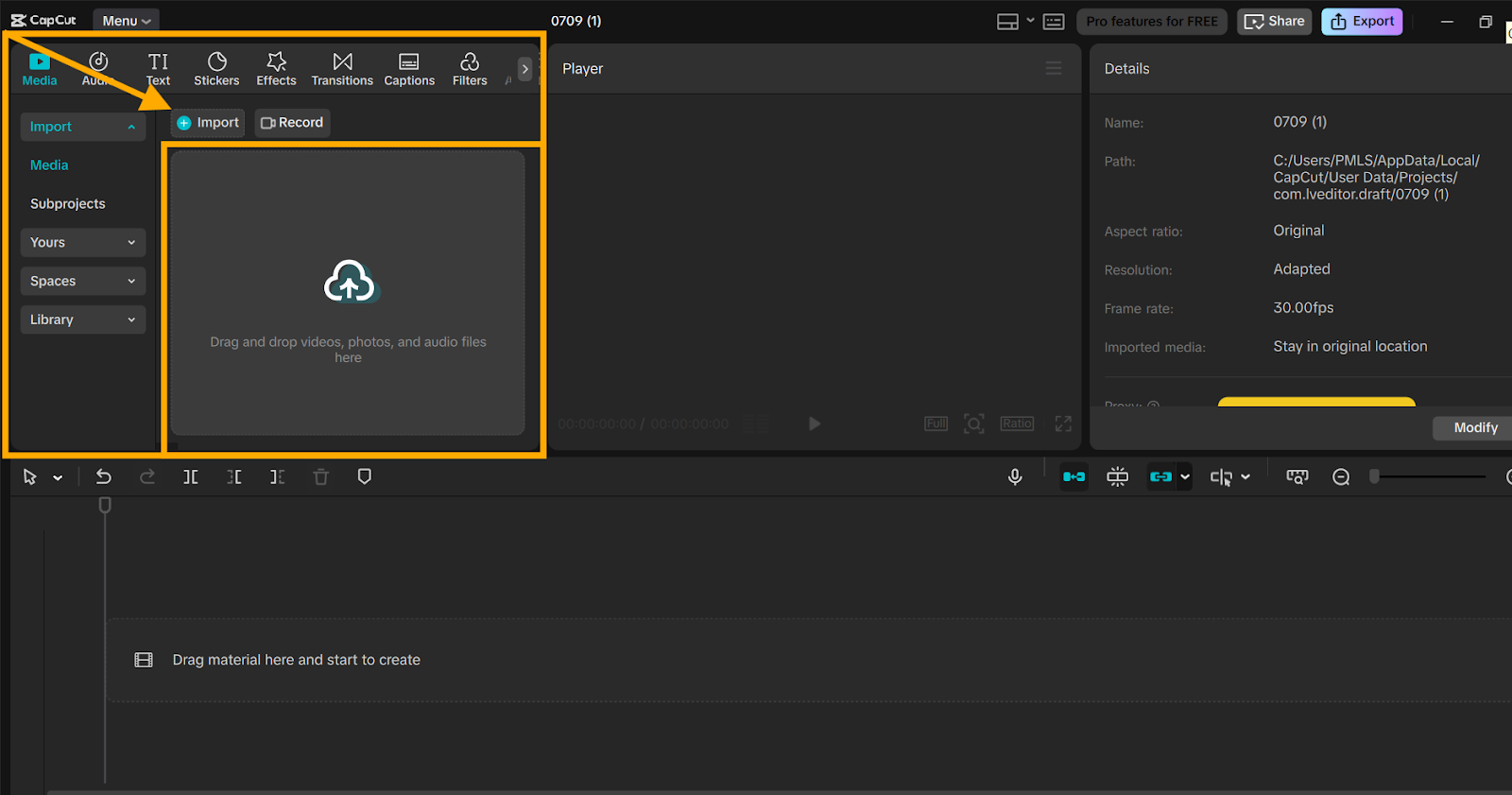
Open CapCut PC and tap “Import” to import your comic panels. Drag the images onto the bottom timeline of the screen. Put them in sequence. Click on each panel to apply zoom or motion effects from the “Animation” or “Motion” menu to the right.
Step 3: Create an AI Voice using Text-to-Speech
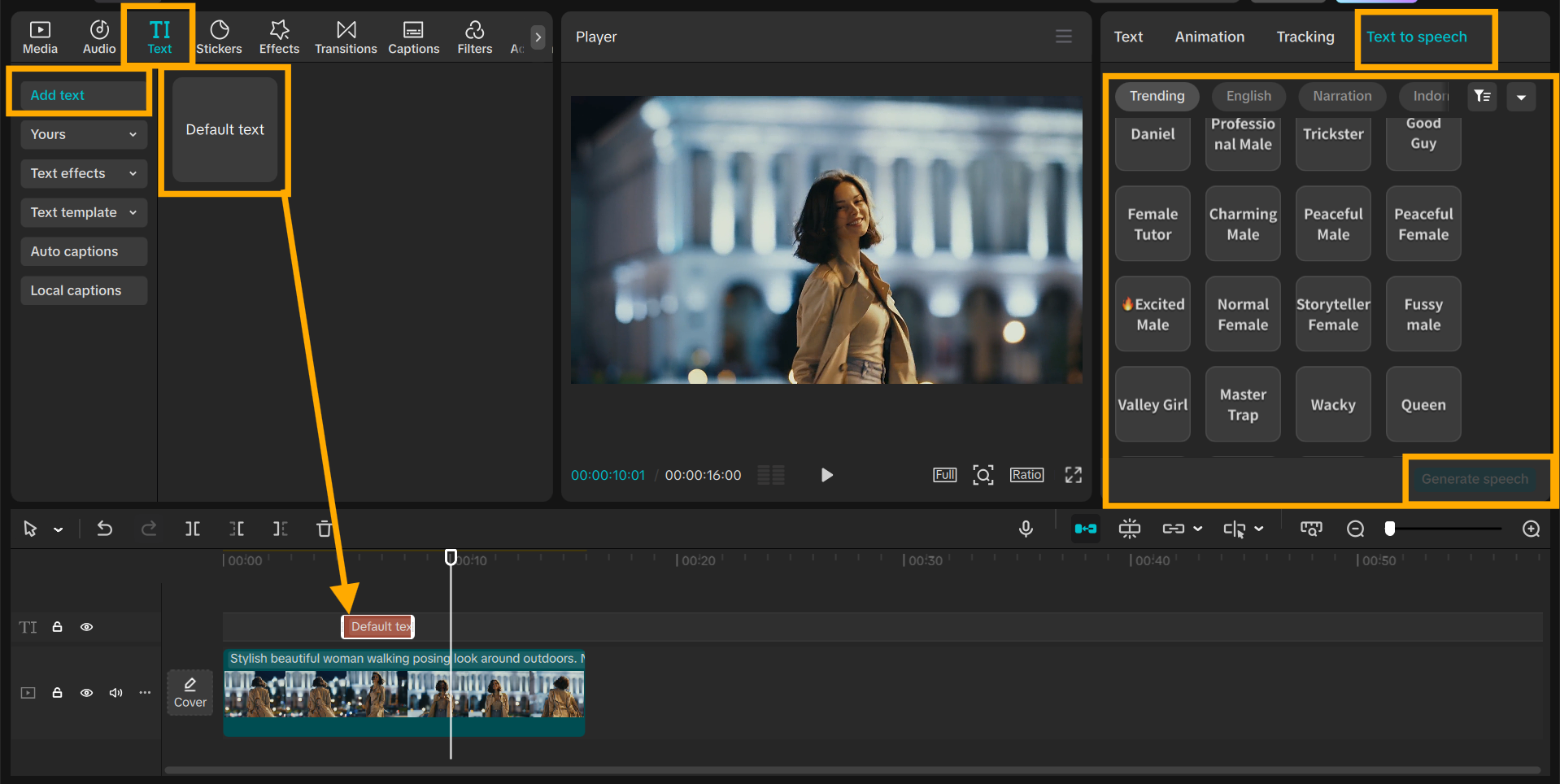
Click “Text” at the top and enter your character’s line in the box. Select “Text to speech”. You can select from voice styles such as male, female, deep, or light. Control pitch and speed with the sliders. Use the text to speech AI feature to give each voice the right feel. Click Add to put the voice in your timeline.
Step 4: Sync Voice with Comic Panels
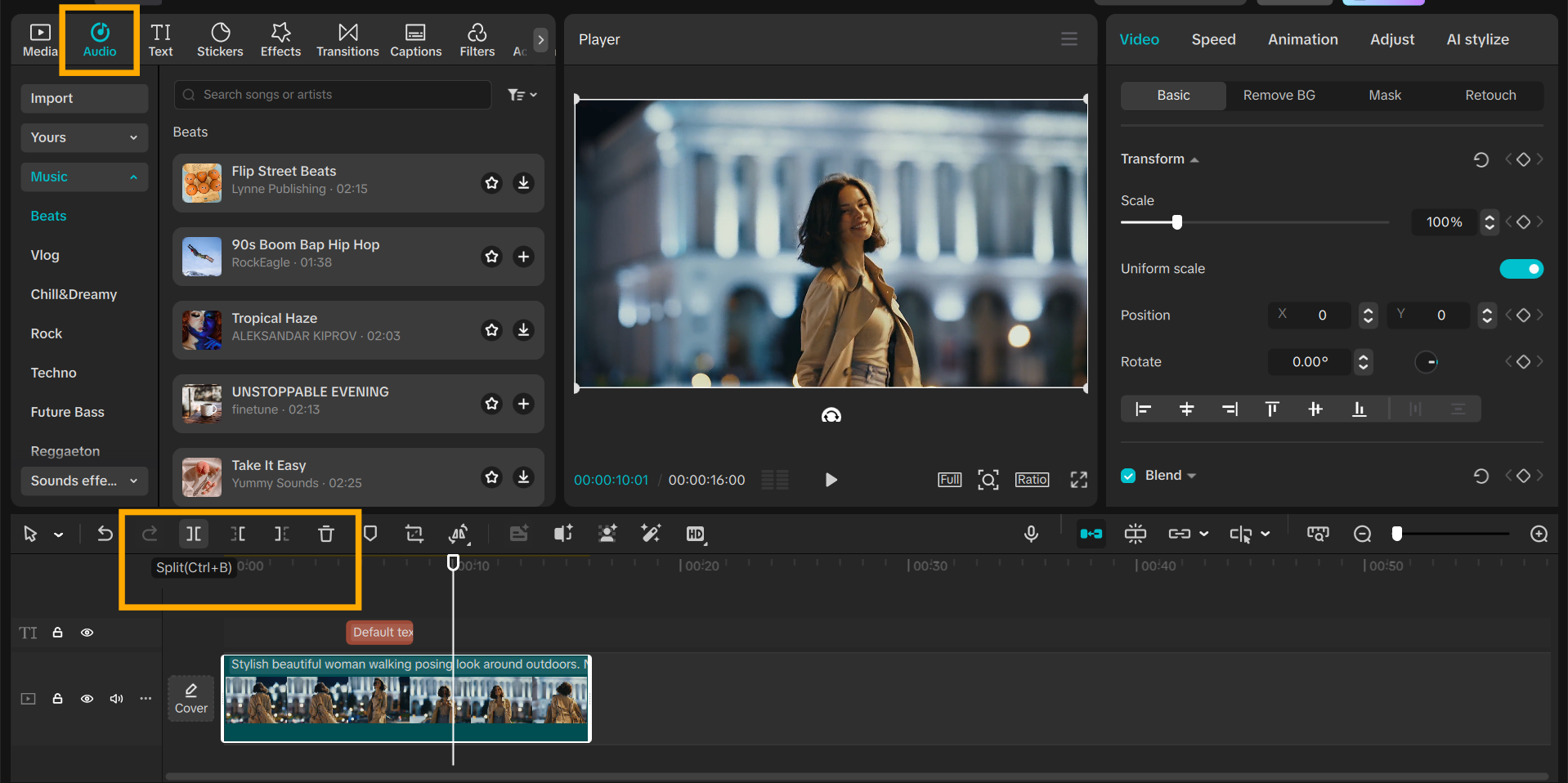
Drag every voice clip under the corresponding panel. Use the “Split” or “Trim” tool to trim it if necessary. Match the timing with the movement of the panel. Music and sound effects can be added from the “Audio” tab.
Step 5: Export Your Video
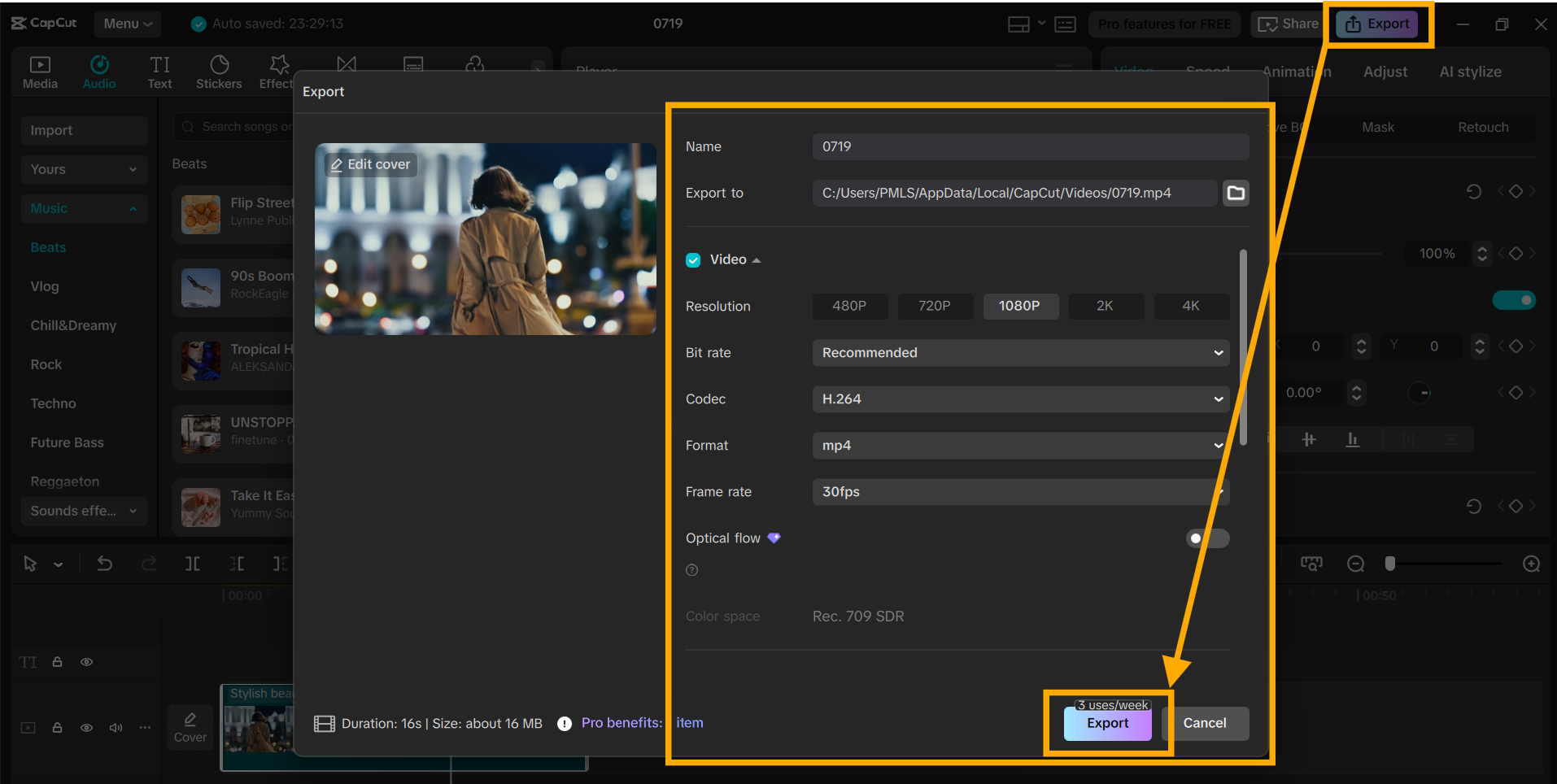
Go to the top right and click the “Export” button. Select your video quality and format. Enter the file name and save location.
Then press “Export” again to save your video to your device. Now your webcomic video is ready to be shared.
Conclusion
With the AI voice tool of CapCut PC, your webcomic can come alive in a clear and easy manner. No mic or voice actor is needed. You just type, choose a voice, and add it to the timeline. The output appears clean and genuine.
The tool saves you time and makes the work feel more professional. Though some of the voice features in the CapCut desktop video editor will require payment, the value is strong.
Give it a try on your next episode and observe how it improves your comic videos.

